
It's fairly straightforward to add an email account to New Outlook. It's worth bearing in mind though that Microsoft now insists on keeping a copy of all your email on their servers regardless, so if you want to avoid that, you may want to use Thunderbird.
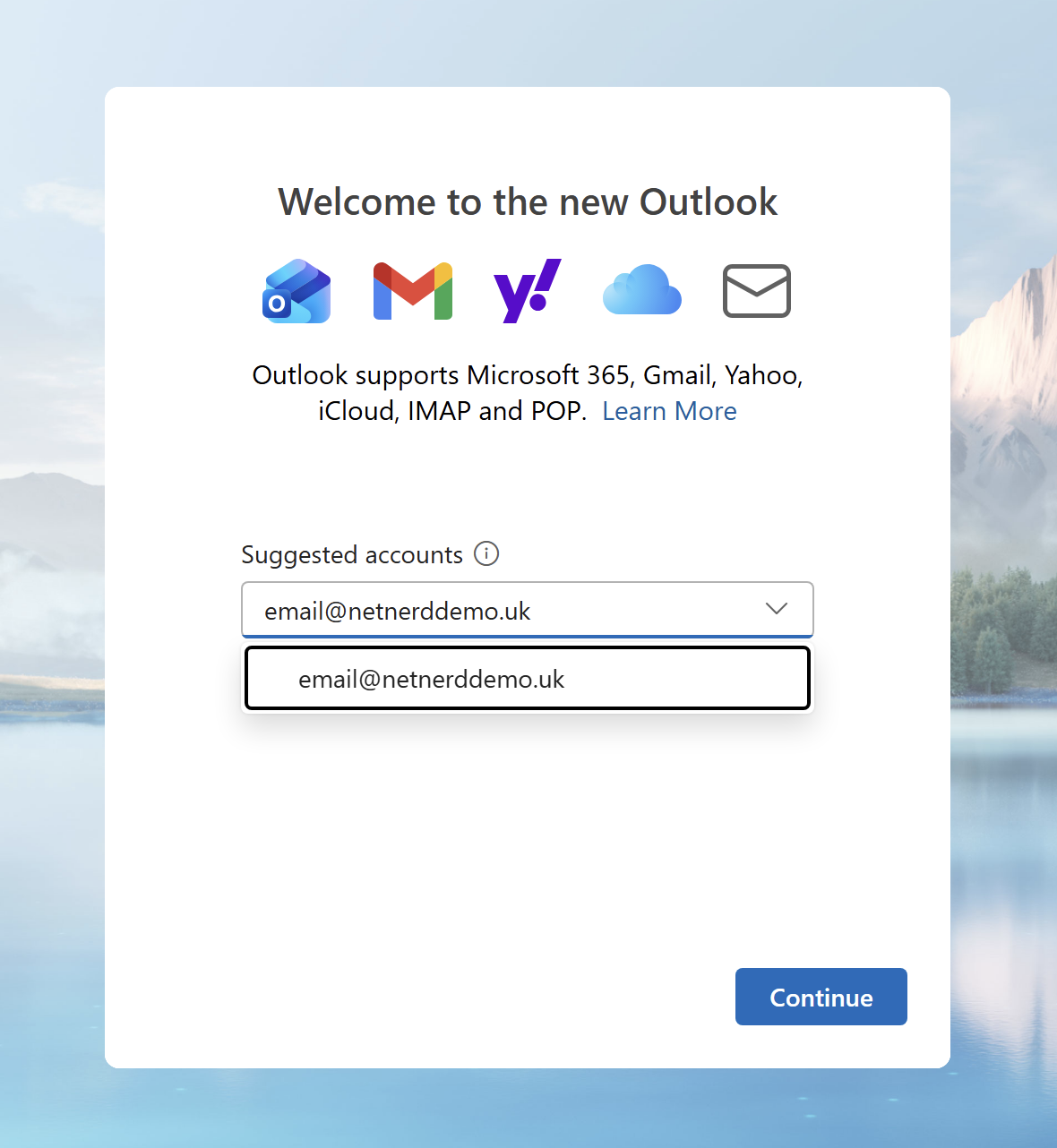
First of all, open New Outlook and then enter your email address, and click continue:
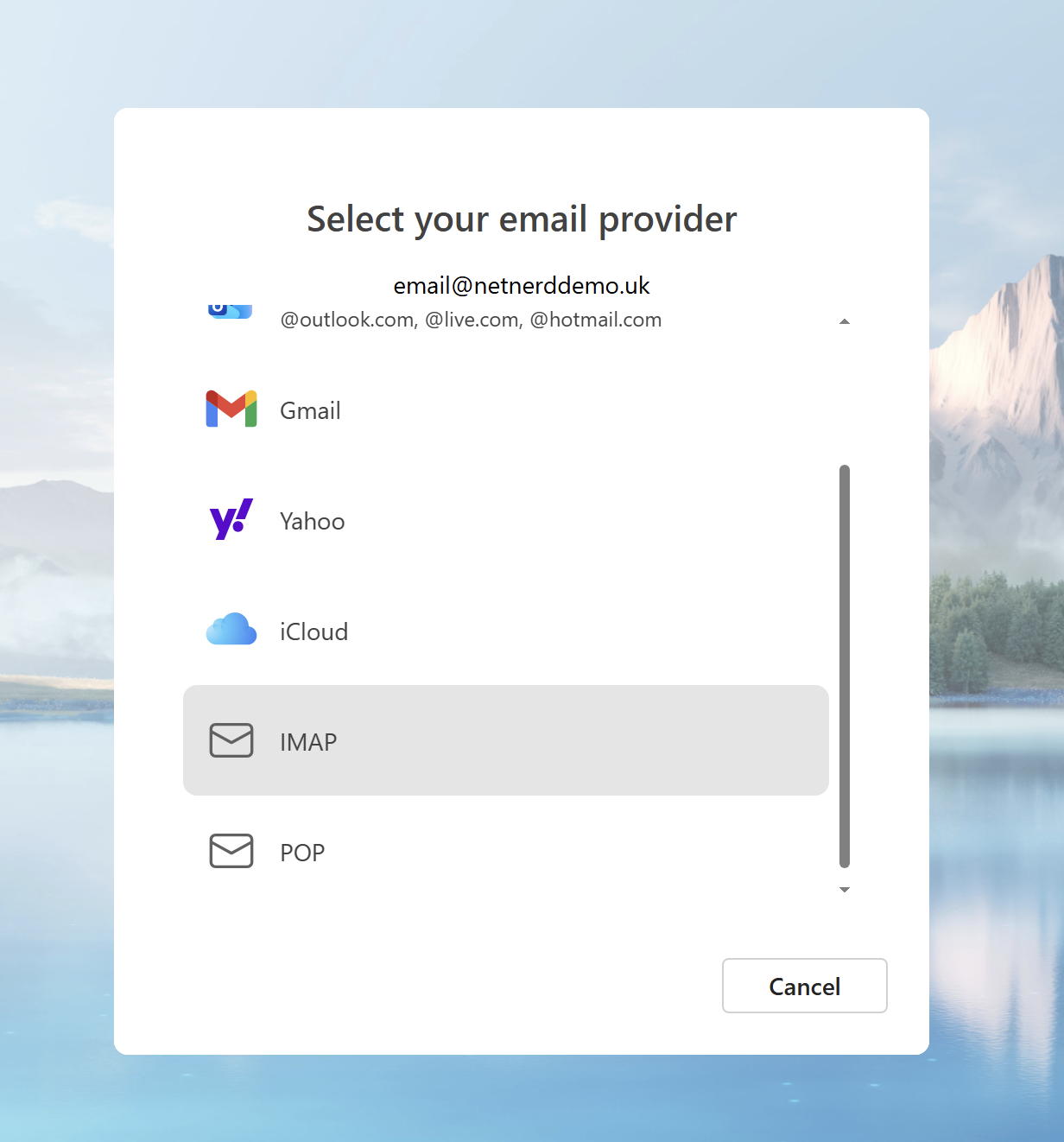
We're using IMAP here, so choose IMAP and then continue:
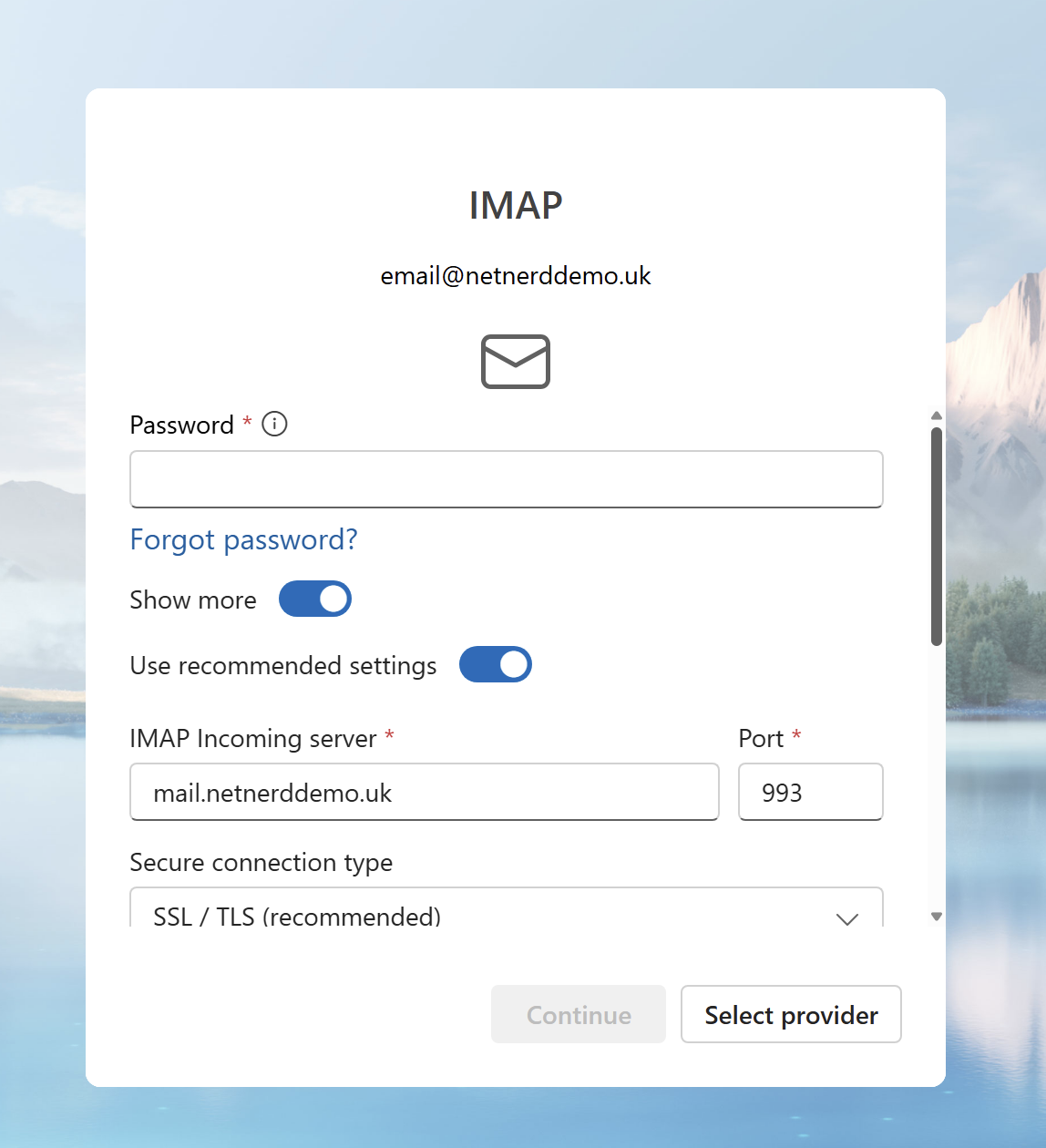
Next we need to enter our IMAP email server settings, which are basically in the format of:
username: the full email address
password: the password you specified when you created the email account in cPanel
mail server: mail.yourdomain.com, in this example our domain is netnerddemo.uk, so it's mail.netnerddemo.uk
Then you'll want to scroll down that window a bit, and you'll see SMTP settings. Just use the same username, password and server name as above:
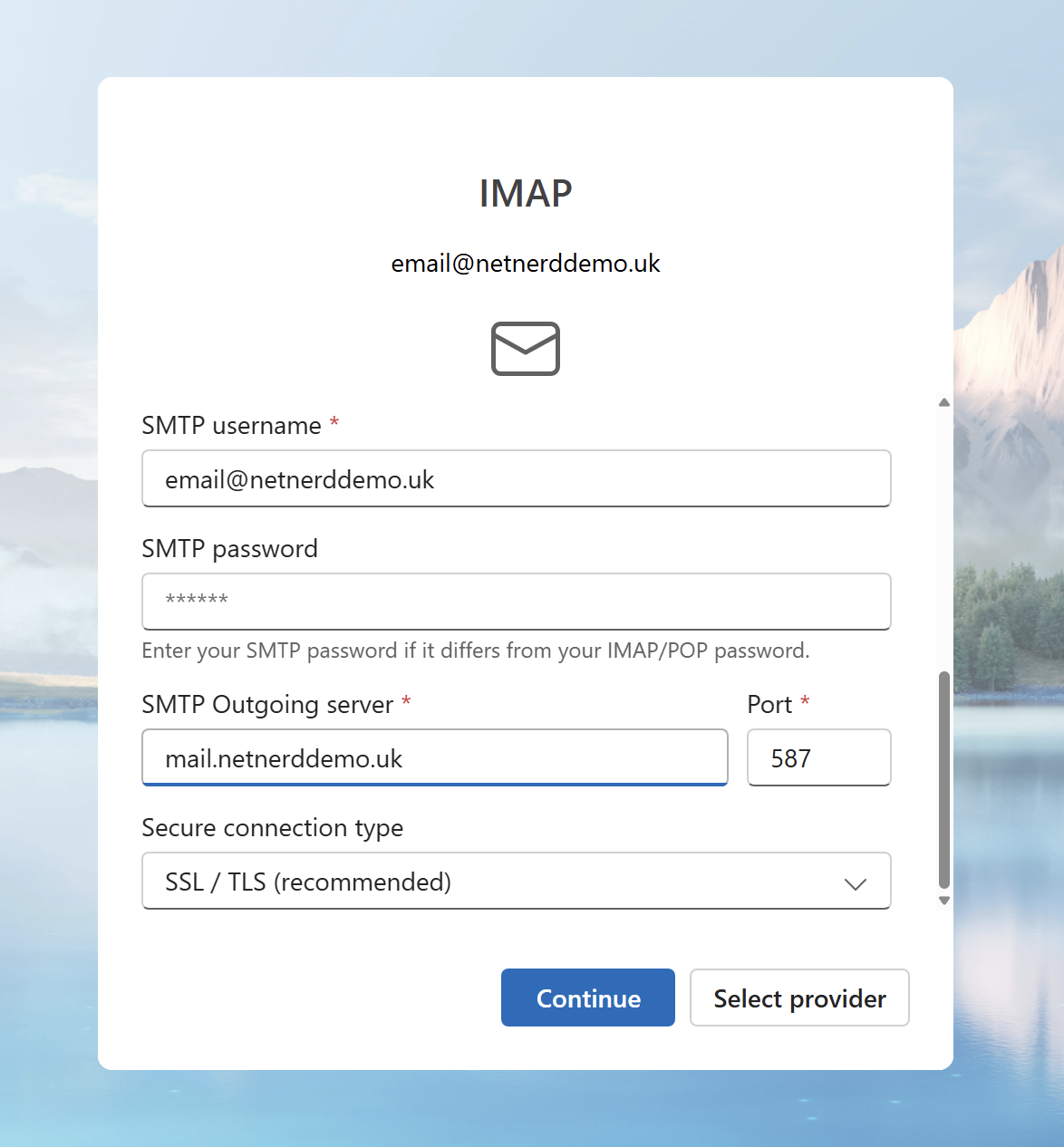
Click continue, it should verify the settings and take you to your mailbox!